
A PDF copy is also available below at the end of this article if you'd like to download and print.
All time off requests are to be submitted through your Paylocity account, and approved by your supervisor through Paylocity.
The free Paylocity app can be found in your app store, making access to your account even more accessible via your phone or handheld device. Check it out here: YouTube Paylocity App Overview (This is not exactly the same as IHOPKC's setup but very similar.)
Please follow the instructions below for submitting time off requests.
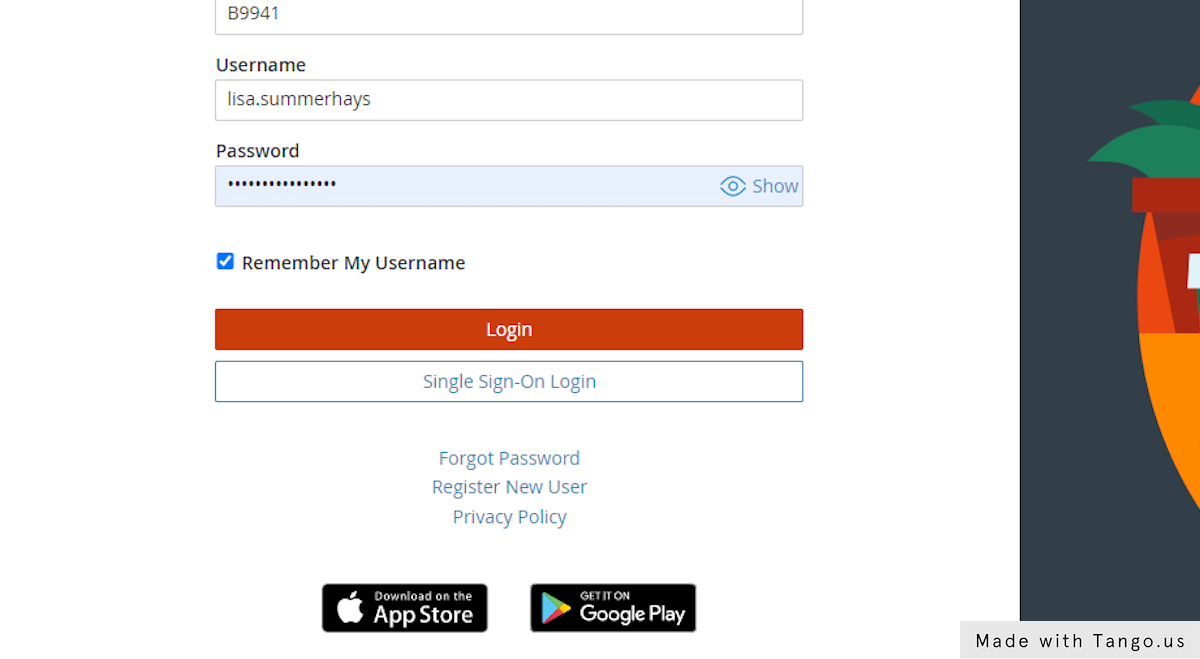
Log in to your account.
- To access your account, go to: https://access.paylocity.
com/ - Company Name: B9941 or B2426
- If you don't know your username and password, please email hr@ihopkc.org.
Time Off - Partial Day Request
1. Login with your personal Paylocity info.
If you don't know your login credentials, please contact HR at hr@ihopkc.org
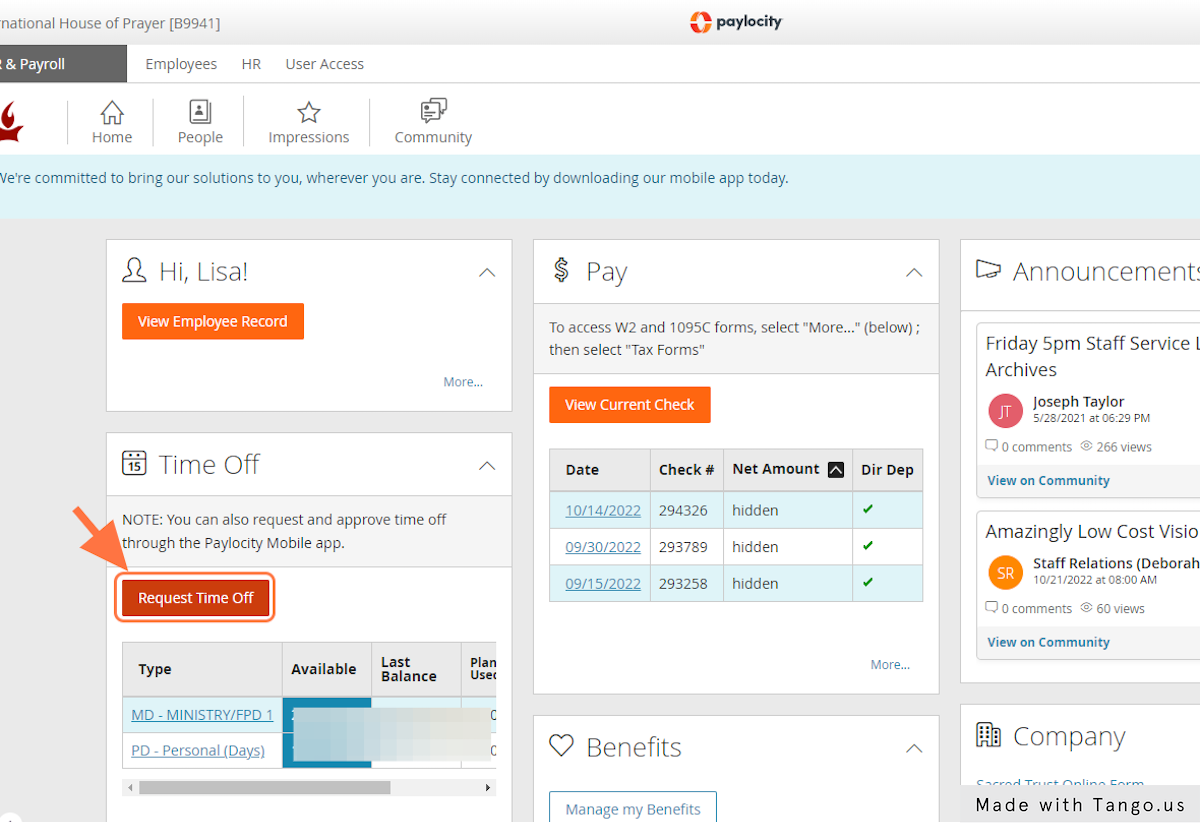
2. Click on Request Time Off
This is in the Time Off area.
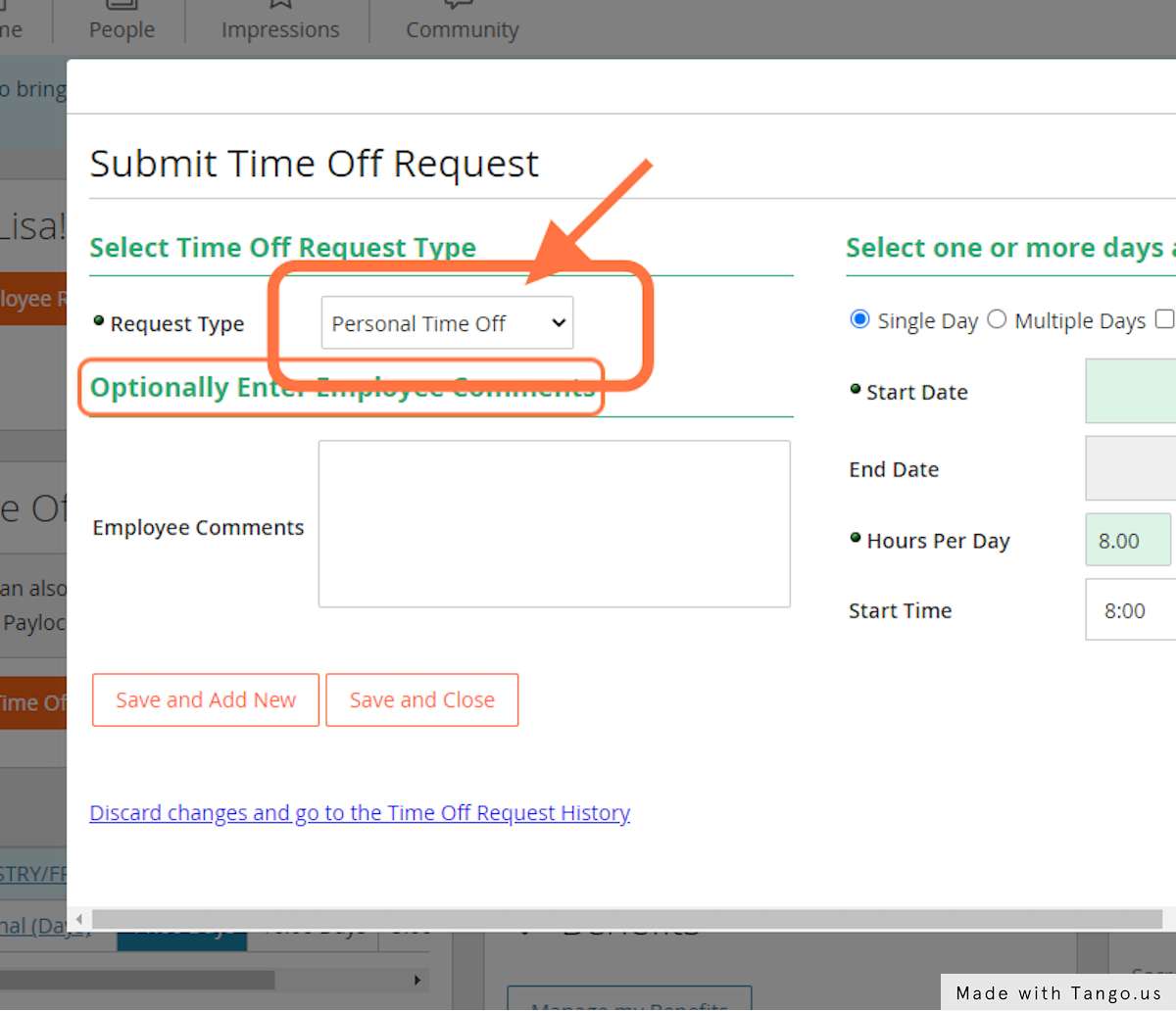
3. Select Request Type (Personal or Ministry)
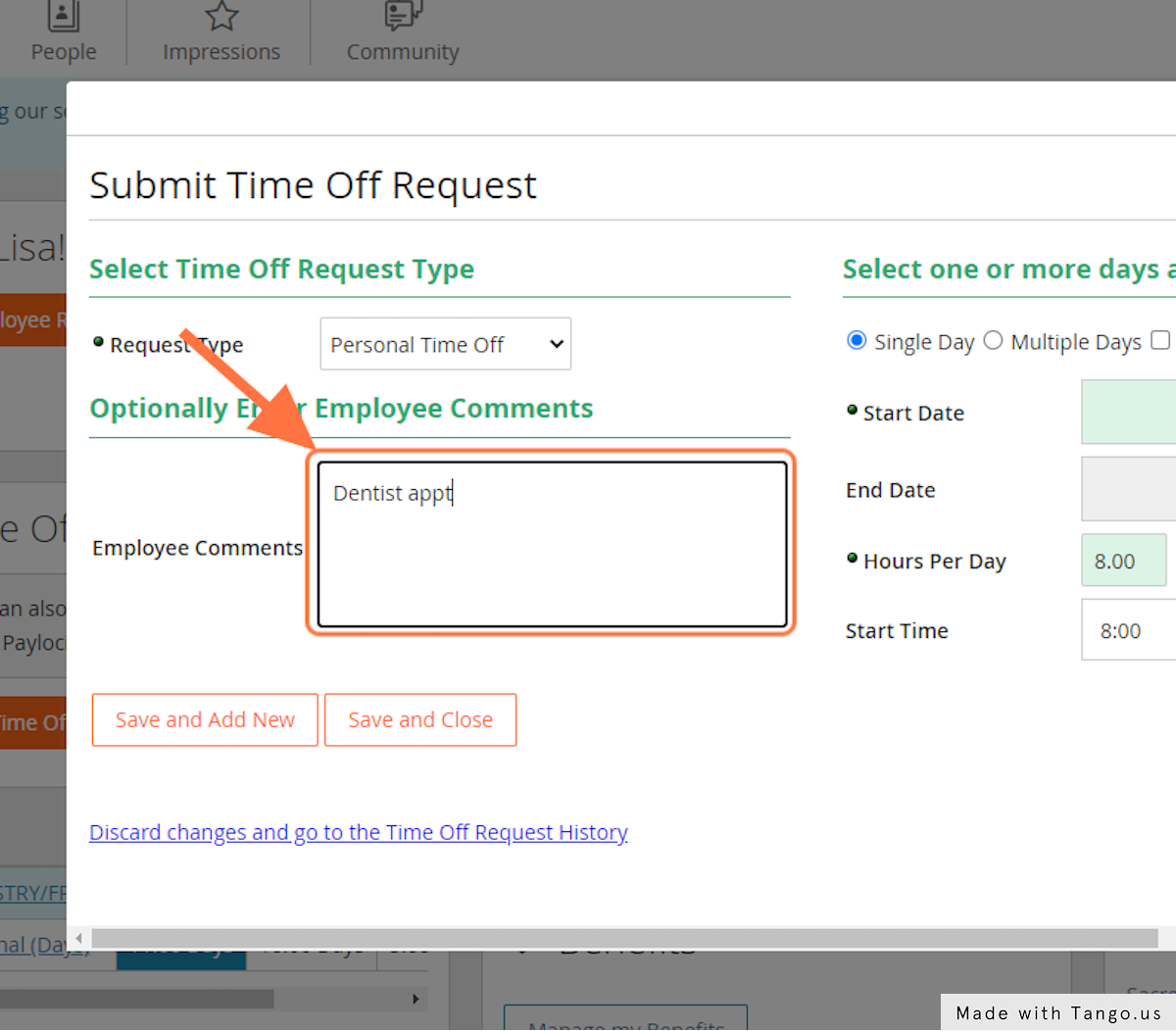
4. Type in Employee Comments
5. Select Single Day option
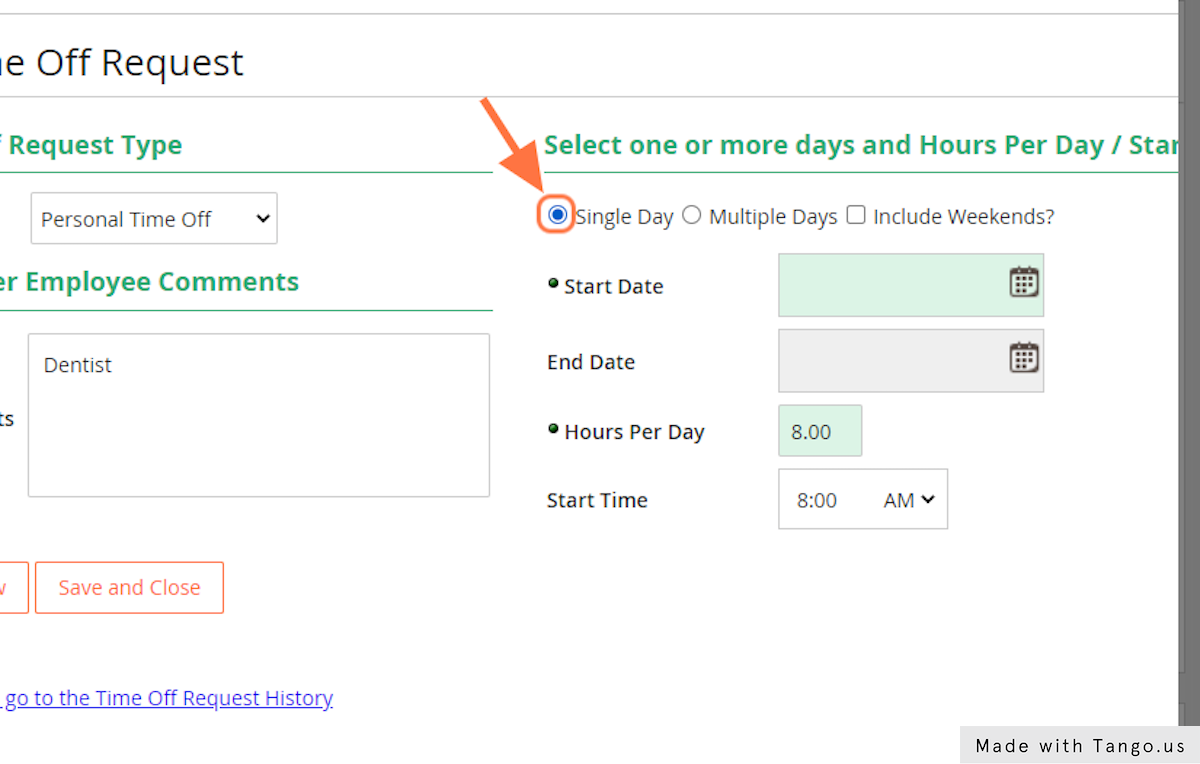
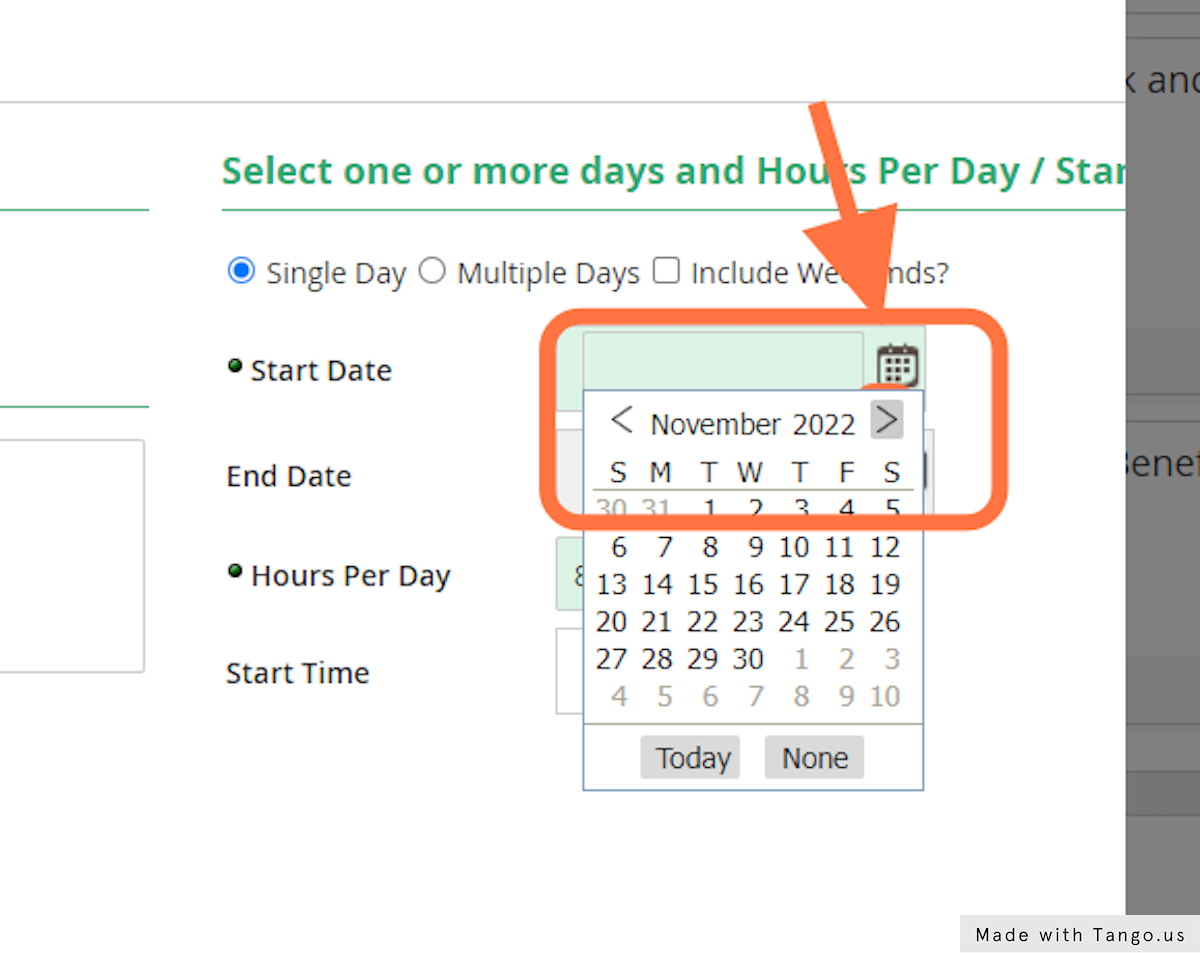
6. Select Start date using calendar icon. End date will auto-populate when "Single Day" has been selected.
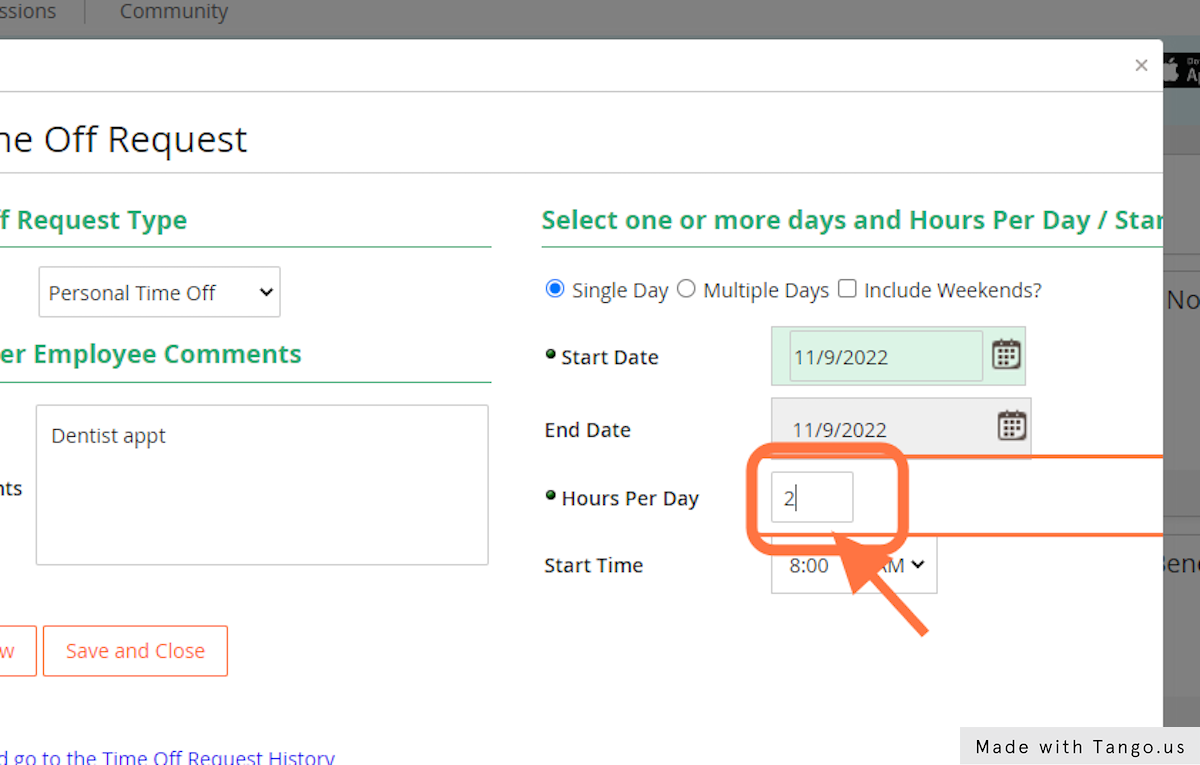
7. Choose Hours Per Day
Enter desired number of hours off.
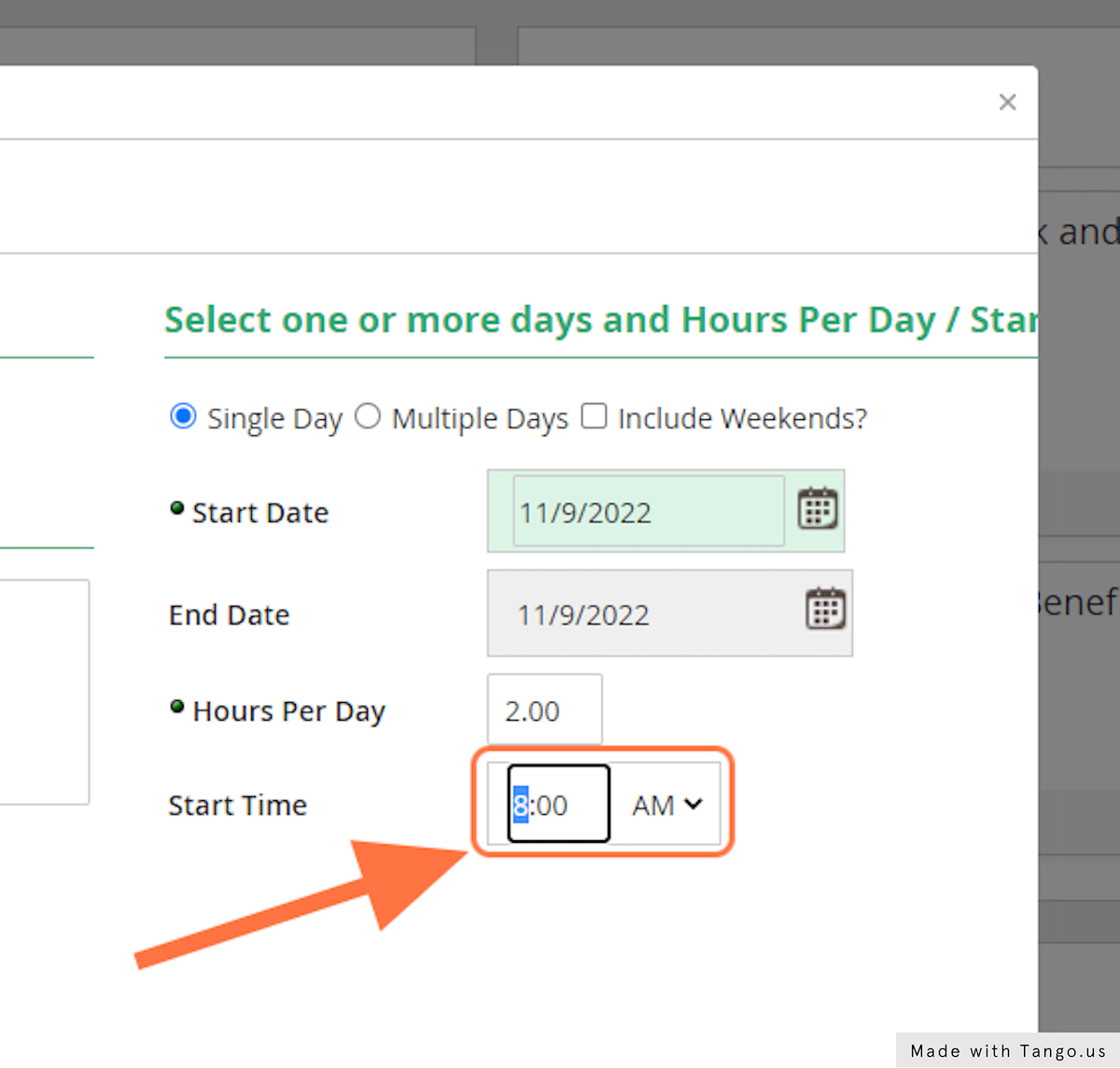
8. Select desired Start Time
Please remember to include AM or PM.
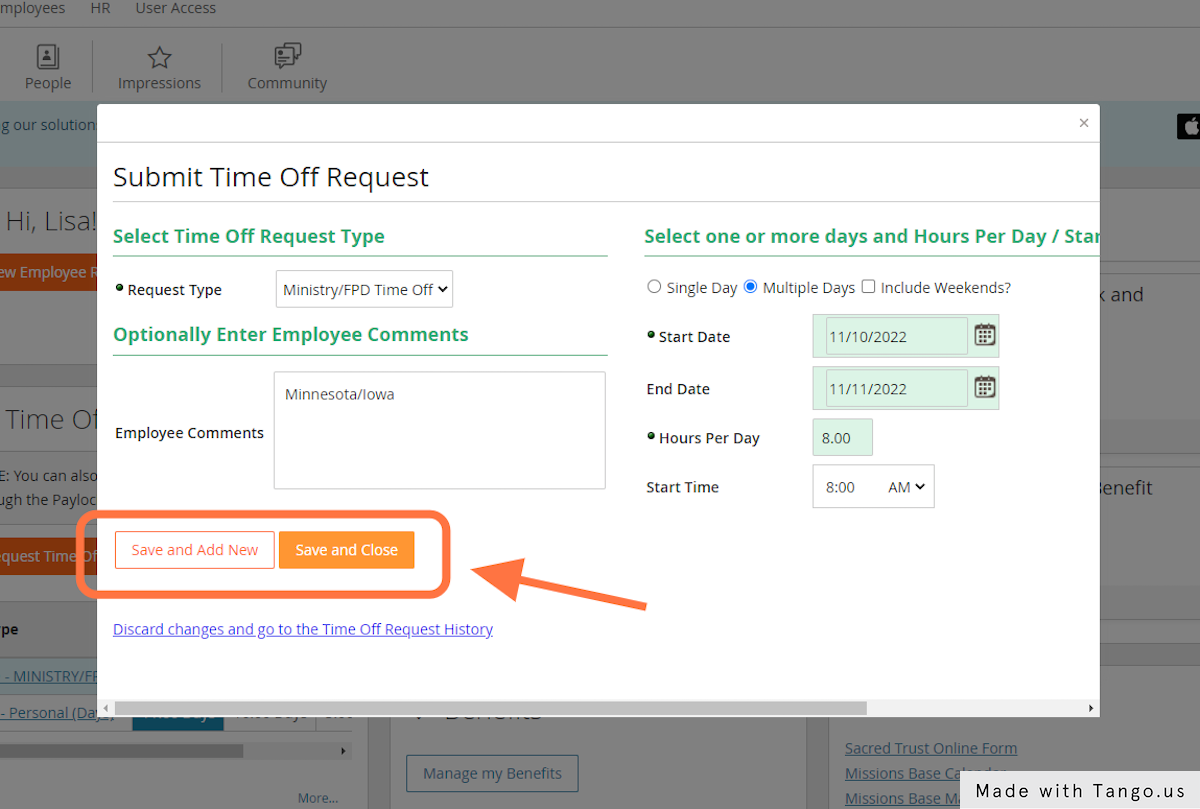
9. Select Save
Choose either Save and Close or else Save and Add New for additional requests.
10. This request will go to your supervisor for approval. Please make sure you get the approval notification in your email prior to your time off.
If you have additional questions, please contact hr@ihopkc.org or visit the office Monday, Wednesday-Friday 9am-12pm.